Meal planning and grocery lists now in CookShelf
April 28, 2026 by DarcieThe hardest part of cooking for me is planning the meals. It is all but impossible for me to stay organized, put together a menu, and make sure to buy all the items I need. That’s IF I can remember where I put the darn grocery list. Meal planning has become so much easier for me now that there are Meal Plan and Grocery List features right in the CookShelf app.
It’s easy to scroll through my bookmarked recipes, add them to the calendar, and select which items I need to purchase to make the recipe. These additions dial the convenience factor up to 11. I can add a recipe to the Meal Plan or ingredients to the Grocery List while I am browsing a recipe, or I can go straight to the Meal Plan and add items directly. In the Grocery List, I can choose which items from a recipe to add to the list, or I can add items ad hoc. The list is organized by grocery store section, making it easy to shop.
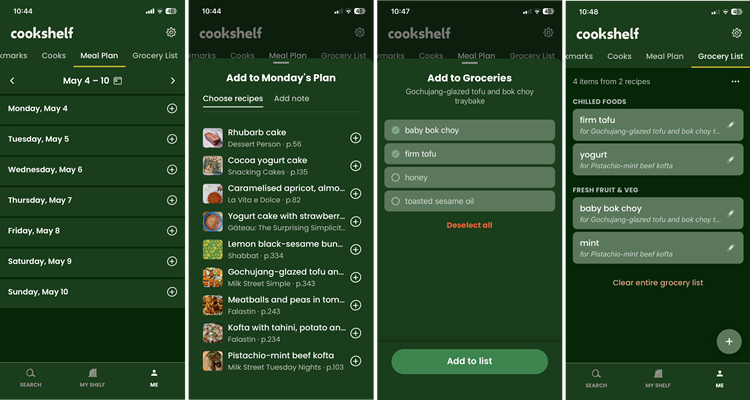
To access these amazing new features, go to the Me icon in the lower right and select Meal Plan or Grocery List from the menu at the top. The Meal Plan comes up with the current week, and you can easily move from week to week using the chevrons at the top. Tap on the plus icon for a date to add items to that day. Change your mind about what you wanted to cook or need to put something off until later? You can move the recipe to another day with just a couple of taps or you can delete it from the plan.
While you are looking at a recipe, you can tap on the shopping cart icon to add items to the Grocery List. All ingredients are selected by default, but there is a “Deselect All” option at the bottom if you only need a few items. Once you have selected the items you want, tap “Add to list” and the items will appear. You can also head straight to the Grocery List to add items that don’t appear in a recipe.
For each item on the list, you can add an amount or change what area of the store the item can be found (this is great when a store has, say, hidden the tahini in a place you would not expect it to be). There is also an area to write a note, such as the name brand or which store will have the ingredient. For ingredients added from recipes, the name of the recipe is automatically added to the note field. The quantities and notes appear on the Grocery List so you don’t have to tap around to see them.
Items will remain on the Grocery List until you remove them. Once you have done your shopping, you can clear the entire grocery list at once, or you can remove items one by one (helpful if you need to go to multiple stores). If you tap on an ingredient, it appears as crossed off and dimmed but stays on the list. It’s only when you select Clear that the item is removed. If you accidentally mark an item as crossed off, tap on it again and it reverts.
Hooray for these wonderful new CookShelf features!
Categories
- All Posts (7397)
- Antipasto (2369)
- Author Articles (260)
- Book News (959)
- Cookbook Giveaways (1009)
- Cookbook Lovers (272)
- Cooking Tips (133)
- Culinary News (308)
- Food Biz People (577)
- Food Online (831)
- Holidays & Celebrations (293)
- New Cookbooks (165)
- Recipes (1548)
- Shelf Life With Susie (231)
- What's New on EYB (142)
Archives
Latest Comments
- anya_sf on Avoid these mistakes when buying produce
- MollyB on Why the refrigerator is bad for bread
- London_Mummy on Avoid these mistakes when buying produce
- FuzzyChef on Avoid these mistakes when buying produce
- FromScratch on Tomato growing tips from an expert
- Duncanarmour on Gloagburn: Recipes from a Scottish Farm – Giveaway
- janecooksamiracle on Why the refrigerator is bad for bread
- KatieK1 on Why the refrigerator is bad for bread
- bc2rlh2023 on Chesnok by Polina Chesnakova – Cookbook Giveaway
- FJT on Bringing back flavorful food